Samantha J Walker

Digital Photography Tips and Reviews

  • Home
  • About Me
  • Contact Me

iStock Pricing Guide 2024: Complete Cost Breakdown for Photos & Videos

November 24, 2024 By Shane Russell

I’ve been diving deep into the world of stock photography lately and I’m thrilled to share my insights about iStock’s pricing structure. As someone who regularly uses stock photos for various projects I know how crucial it’s to find the right balance between quality and cost.

When I first discovered iStock I was amazed by their flexible pricing options that cater to different needs and budgets. Whether you’re a solo content creator or running a large marketing team there’s something for everyone. I’ll walk you through everything from credit packs to subscription plans so you can make the best choice for your creative projects.

What Is iStock and How Does It Work

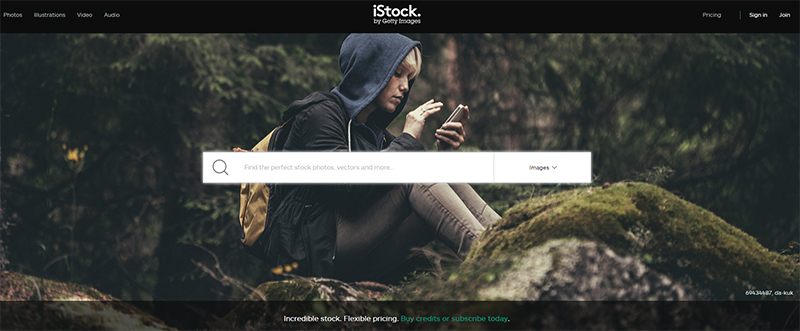
iStock is a leading digital content marketplace owned by Getty Images that provides high-quality stock photos, videos, illustrations, and audio files. I’ve found that it operates on a straightforward system where content creators upload their work, and customers like me can purchase and download these assets for various projects.

Key Features of iStock Platform

  • Advanced search filters to locate specific content by color, orientation or composition
  • Multi-language interface supporting 21 different languages
  • AI-powered search technology for finding visually similar images
  • Built-in image editor for basic photo modifications
  • Curated collections organized by themes, styles or industries
  • Mobile app for browsing and downloading on-the-go
  • Cloud storage integration for saved content
  • Download history tracking for easy content management

Stock Photo Licensing Types

I’ve discovered that iStock offers two primary licensing options:

  • Standard License
  • Use in digital media up to 500,000 impressions
  • Print reproduction up to 500,000 copies
  • Social media and website usage
  • No resale or redistribution rights
  • Extended License
  • Unlimited digital impressions
  • Unlimited print runs
  • Merchandise creation and resale rights
  • Electronic template usage rights
  • Free promotional distribution

Unlike some stock photo websites like Shutterstock, iStock’s licensing structure provides clear usage guidelines without complex restrictions. Each image displays its available license types directly on the preview page, making it simple to determine the appropriate usage rights for specific projects.

Understanding iStock Credit Pricing System

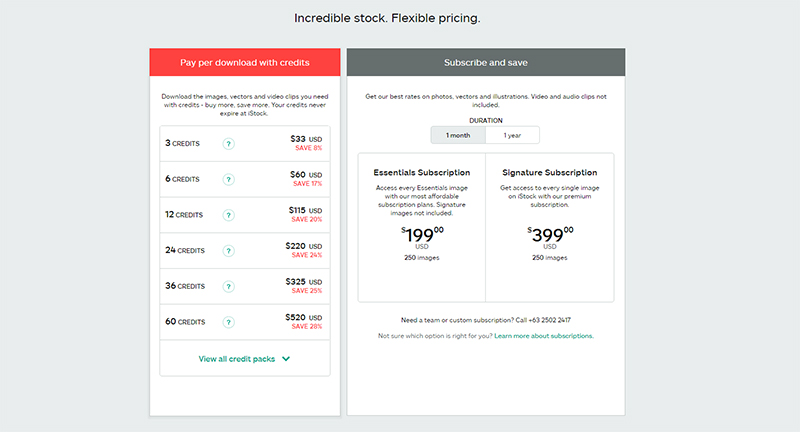
I’ve discovered that iStock’s credit-based pricing system offers flexible purchasing options for digital content. Credits serve as the platform’s virtual currency, enabling users to download images, videos, and illustrations at varying costs based on file size and collection type.

Credit Pack Options and Rates

The iStock credit system features multiple pack sizes, starting from 1 credit at $12 up to 300 credits at $2,400. Here’s a breakdown of the current credit pack options:

Credit Pack Size Total Cost Cost per Credit
1 credit $12 $12.00
6 credits $60 $10.00
12 credits $120 $10.00
30 credits $280 $9.33
60 credits $520 $8.67
300 credits $2,400 $8.00

Essential collection images cost 1 credit each, while Signature collection images require 3 credits per download. Video downloads range from 6 to 18 credits depending on quality and collection type.

Subscription vs. Credit Purchase

I’ve analyzed both purchasing options and found distinct advantages for different usage patterns:

Credit Packs:

  • Perfect for occasional downloads
  • No expiration date on purchased credits
  • Ideal for mixing content types (photos, videos, vectors)
  • Freedom to purchase premium collection items
  • Cost-effective for frequent downloads
  • Monthly download limits with automatic renewal
  • Better value than competing stock photo websites like Shutterstock for high-volume users
  • Limited to specific content types per plan
  • Access to Essential collection only

iStock Price Comparison with Competitors

I’ve analyzed iStock’s pricing against other major stock photo websites to provide a comprehensive market comparison. The platform’s competitive positioning reveals distinct advantages for specific user segments.

Benefits of iStock Premium

iStock Premium collection offers superior quality visuals at competitive rates compared to Shutterstock’s Premium tier. Through my extensive research, I’ve found that iStock’s Premium content delivers:

  • Exclusive access to high-resolution images from Getty Images contributors
  • Monthly credits rollover for up to 12 months
  • Advanced AI-powered search filters
  • Unlimited seats for team subscriptions
  • Integration with major design software

Cost-Effectiveness Analysis

My detailed price comparison between iStock and other stock photo websites reveals significant insights:

Platform Basic Monthly Plan Premium Monthly Plan Single Image Cost
iStock $29 $99 $12
Shutterstock $29 $159 $9.16

The cost analysis demonstrates:

  • Lower Premium tier pricing than Shutterstock for team subscriptions
  • Flexible credit system with bulk purchase discounts
  • Multi-asset downloading options within subscription plans
  • Higher value per download for Premium collection access
  • Competitive rates for extended licenses compared to market alternatives
  • Marketing agencies requiring Premium content
  • Small businesses with consistent visual content needs
  • Creative professionals seeking exclusive imagery
  • Teams collaborating on multiple projects simultaneously

Tips for Getting the Best Value on iStock

I’ve discovered several effective strategies to maximize value when purchasing iStock content. These methods help reduce costs while maintaining access to high-quality assets.

Seasonal Discounts and Promotions

iStock offers significant savings through seasonal promotions during major holidays like Black Friday Cyber Monday Memorial Day. I’ve tracked these promotional periods carefully:

  • Subscribe to iStock’s newsletter to receive early notifications of flash sales offering up to 25% off credit packs
  • Follow iStock’s social media channels for exclusive promo codes distributed monthly
  • Take advantage of first-time customer discounts providing 15% off initial purchases
  • Monitor special events like iStock’s anniversary sale featuring limited-time pricing on Premium content
  • Buy larger credit packs to reduce per-credit costs from $12 to $8
  • Purchase annual subscriptions instead of monthly plans for 20% savings
  • Combine team licenses to access volume pricing discounts of 15-30%
  • Stack promotional codes with bulk purchases during sales events
  • Choose Premium collection credits in larger quantities to maximize per-image value
Credit Pack Size Cost Per Credit Savings vs. Single Credits
1 Credit $12.00 0%
60 Credits $9.50 21%
300 Credits $8.00 33%

Maximizing Your iStock Investment

I’m thrilled to share my proven strategies for getting the most value from iStock’s digital content marketplace. Let me show you how to optimize your purchasing decisions and maximize your investment.

Smart Download Strategies

  • Download similar images in bulk to utilize the same credit value within a 24-hour window
  • Schedule downloads during off-peak hours to take advantage of flash sales
  • Track seasonal content needs to purchase during promotional periods
  • Save favorite images to collections before buying to plan credit usage efficiently
  • Download lower-resolution versions when high-resolution isn’t required
  • Check file specifications before purchasing to avoid unnecessary credit spending
Plan Type Best For Key Benefits
Credit Packs Occasional users No expiration, flexible usage
Monthly Subscription Regular downloads Lower per-image cost
Annual Subscription High-volume users 20% savings vs monthly
Team Subscription Marketing agencies Shared download limits
  • Select credit packs for one-time projects requiring specific Premium content
  • Choose monthly subscriptions when downloading 10+ images consistently
  • Opt for annual plans to secure better rates on long-term projects
  • Consider team subscriptions to share resources across multiple users
  • Mix subscription types to access both Essential and Premium collections efficiently
  • Compare per-download costs between iStock and Shutterstock before committing

Conclusion

I’m thrilled to have shared my deep dive into iStock’s pricing structure! It’s amazing to see how their flexible options can fit any creative budget or business need. From credit packs to subscriptions the platform offers incredible value especially when you know the right strategies.

My research clearly shows that iStock stands out with its premium collection quality competitive rates and user-friendly licensing. I’ve found their credit system particularly appealing since it lets me control my spending while accessing top-tier content.

So whether you’re a solo creator or part of a large team I’m confident you’ll find the perfect pricing plan on iStock. I can’t wait for you to explore these amazing options and take your projects to the next level!


How to Create Stunning Photo Collages with Pic Collage App: A Complete Guide

November 11, 2024 By Shane Russell

I’ve always believed that pictures tell the best stories, and creating a photo collage is one of my favorite ways to showcase multiple memories in a single stunning image. Whether you’re designing for social media, making a birthday card, or preserving precious moments, pic collages offer endless creative possibilities.

As a photography enthusiast, I’ve spent countless hours experimenting with different collage apps and techniques. I’ve discovered that making beautiful photo collages isn’t just about throwing pictures together – it’s an art form that combines layout, spacing, and visual harmony to create something truly special. From simple grids to complex overlays, there’s a collage style for every occasion and skill level.

What Is Pic Collage and How Does It Work

Pic Collage is a digital photo editing application that enables users to combine multiple images into a single composition. I’ve found it transforms ordinary photos into visually appealing layouts through an intuitive drag-and-drop interface.

Key Features and Tools

  • Photo editing tools include cropping, filters, stickers & text
  • Smart layout options with pre-designed templates & grids
  • Background customization with solid colors, patterns & textures
  • Border adjustments for individual photos & entire collages
  • Direct social media sharing capabilities
  • Photo enhancement features like brightness, contrast & saturation controls
  • Freeform editing mode for unrestricted creative arrangements
  • iOS app for iPhone & iPad with regular updates
  • Android version on Google Play Store
  • Web-based platform accessible through browsers
  • Premium version with advanced features & templates
  • Free version with essential editing capabilities
  • Cross-platform synchronization for project access
  • Compatibility with latest mobile operating systems
Platform Free Features Premium Features
iOS 50+ templates 300+ templates
Android Basic editing Advanced tools
Web 100MB storage 1GB storage

The platform’s versatility extends across devices, maintaining consistent functionality while adapting to each operating system’s unique capabilities. I’ve noticed the mobile versions offer touch-optimized controls, while the web platform provides enhanced precision for detailed editing.

Creating Your First Photo Collage

I’ve created countless photo collages using Pic Collage, and starting your first project is straightforward. This section guides you through the essential steps to craft your initial collage masterpiece.

Choosing and Importing Photos

Photos form the foundation of any collage creation in Pic Collage. I tap the ‘+’ button to access my device’s photo gallery, where I select up to 10 images for the free version. The app supports various image formats including JPG, PNG, and HEIC files. My imported photos appear in the media tray at the bottom of the screen, ready for arrangement.

Applying Templates and Layouts

Pic Collage offers 50+ pre-designed templates that streamline the creation process. I drag my selected photos into the template slots, which automatically adjust the image sizes. The Grid layout provides classic arrangements with equal-sized frames, while the Freestyle option lets me position images manually. Each template includes customizable spacing options ranging from 0 to 20 pixels between photos.

Template Type Available Layouts Max Photos
Grid 25 16
Freestyle 15 20
Stories 10 8

Customization Options

Pic Collage offers extensive personalization features to transform basic photo layouts into unique visual stories. I’ve discovered numerous ways to enhance collages through the app’s built-in creative tools.

Adding Text and Stickers

Pic Collage provides a rich selection of text styles with 100+ fonts ranging from elegant scripts to bold display options. I add custom captions by tapping the text icon, selecting a font, and adjusting the size, color, or opacity with intuitive slider controls. The sticker library includes 1000+ decorative elements sorted into categories:

  • Seasonal designs (holiday themes, weather icons, birthday elements)
  • Emoji expressions for conveying emotions
  • Decorative frames to highlight specific photos
  • Speech bubbles for adding dialogue or captions
  • Hand-drawn doodles for artistic accents

Adjusting Filters and Effects

The app’s editing suite features 30+ professional-grade filters to enhance the visual appeal of individual photos or entire collages. I apply effects through these key features:

  • One-tap filters (Vintage, Black & White, HDR)
  • Adjustment tools for brightness, contrast, saturation
  • Color overlay options with opacity control
  • Blur effects for creating depth
  • Border styles with customizable thickness & color
  • Shadow effects to add dimension between layers

Each filter includes intensity controls, allowing precise adjustments to achieve the desired look. The changes appear in real-time, making it easy to preview different combinations before finalizing the design.

Sharing and Exporting Options

Pic Collage offers multiple ways to share completed photo collages directly with friends or save them for personal use. I’ve found the export process straightforward with options tailored for different sharing needs.

Social Media Integration

Pic Collage connects seamlessly with major social platforms through built-in sharing buttons. I can post my collages directly to Instagram, Facebook, Twitter or Pinterest without leaving the app. The integration automatically optimizes image dimensions based on each platform’s requirements:

Platform Optimal Resolution Aspect Ratio
Instagram 1080 x 1080 px 1:1 Square
Facebook 1200 x 630 px 1.91:1
Twitter 1024 x 512 px 2:1
Pinterest 1000 x 1500 px 2:3

Download and Print Settings

The export menu in Pic Collage provides multiple resolution options for different uses. I can save my creations in:

  • High resolution (2048 x 2048 px) for professional printing
  • Medium resolution (1024 x 1024 px) for digital sharing
  • Web resolution (640 x 640 px) for quick online posts
  • Custom dimensions to match specific requirements
  • JPG for standard photo sharing
  • PNG for preserving transparency
  • PDF for professional printing services

Tips for Making Professional-Looking Collages

Creating visually appealing collages in Pic Collage requires attention to design fundamentals and avoiding common pitfalls. I’ve discovered specific techniques that transform basic photo arrangements into polished, professional compositions.

Design Principles to Follow

  • Balance the visual weight of images by placing larger photos opposite smaller ones
  • Create a clear focal point using one dominant image
  • Maintain consistent spacing between photos (5-10 pixels for grid layouts)
  • Use complementary color schemes across photos
  • Align elements to invisible grid lines for structured layouts
  • Apply the rule of thirds when arranging key image elements
  • Select photos with similar lighting conditions or edit them for consistency
  • Limit font choices to 2-3 complementary styles per collage
  • Overcrowding the canvas with too many photos
  • Mixing inconsistent filter styles across different images
  • Using clashing or overwhelming background patterns
  • Placing similar-sized photos next to each other
  • Adding text that’s too small to read (minimum 14pt font)
  • Choosing low-resolution images that appear pixelated
  • Creating asymmetrical borders in grid layouts
  • Overlapping photos in ways that hide important subjects
  • Using decorative elements that distract from the main photos
  • Ignoring white space which creates visual breathing room
Design Element Recommended Specifications
Image Count 3-7 photos per collage
Border Width 2-4 pixels for consistency
Text Size 14-24pt for readability
Image Resolution Minimum 1200×1200 pixels
Spacing 5-10 pixels between elements

Conclusion

Creating stunning photo collages has never been easier thanks to Pic Collage’s user-friendly interface and comprehensive features. I’ve found that whether you’re a beginner or a seasoned creator this app provides all the tools needed to bring your visual stories to life.

With its versatile templates professional editing capabilities and seamless sharing options Pic Collage stands out as my go-to choice for crafting memorable photo compositions. I’m confident that by following the tips and techniques I’ve shared you’ll be well-equipped to create eye-catching collages that capture and share your special moments beautifully.


Stay Under Budget with iStock Promo Codes

August 20, 2015 By Shane Russell

istock promo code

Stock image photo services are not always the cheapest item on your list when it comes to marketing expenses. They are one of the most essential, making any stock photo image subscription one of your primary investments and an integral part of your marketing plan.

Not everybody has the luxury of spending a couple hundred dollars per month on these images. In fact, some will of the best advice anyone can give you when it comes to marketing brand-new businesses is to not spend money before you make money. Although that situation may be ideal, it is not always possible. For many people, their marketing budgets must be strictly adhered to.

It is these people that I’m trying to reach today. There are those who have limited marketing budgets – I know because I used to be one of them. In a very real sense, I still am as my marketing expenses are always on a budget. Although stock photos are an essential part of any marketing plan, there are ways to stay under budget.

The monthly pricing model for most stock photo imaging services often leaves business owners with limited marketing budgets feeling pressured to purchase and download images before a subscription runs out. This can lead to unplanned, hasty decisions. As a fellow business owner myself, I can understand firsthand the danger of making a marketing decision without thinking of where it first. Every business owner goes into business with a plan and making unplanned decisions are never in that plan.

istock-flexible-pricinng

If you have a strict marketing budget, a flexible pricing plan might be best for you. Instead of paying monthly for a certain amount of images, it might be better if you were to purchase credits. The pricing model for iStock photo’s imaging service allows you to do just that. Instead of paying a monthly fee, these do not expire. This is the best business model to follow if you don’t need several of images every month. What if you only need an image every other month? This is an excellent way to start.

If you wanted to have even more room in your budget, consider the exclusive relationships that Stock Photo Secrets maintains with various stock image photo sites. Stock Photo Secrets runs various promotions for several of the market’s stock photo imaging services. iStock promo codes for 2025, as offered by Stock Photo Secrets, enable new users to receive discounts on credit packs up to 15% off. Every business maintains a marketing budget, as no business is in the business of wasting money that can otherwise be saved.

Recent Posts

  • The Power of Stock Footage for Real Estate Drone Videos
  • 7 Essential Interior Design Principles: Transform Your Space Like a Pro
  • How to Set Up and Maximize Your Adobe Stock Account: A Complete Guide
  • WordPress Photo Management: 7 Essential Tips for Better Image Optimization
  • iStock Pricing Guide 2024: Complete Cost Breakdown for Photos & Videos
  • How to Create Stunning Photo Collages with Pic Collage App: A Complete Guide
  • Add Words to Your WordPress Photo
  • Which Getty Images Footage License Should You Get?
  • Choosing Cheap Stock Photos that Support your Message and Elicit Visceral Response
  • Photocase Photography: An Overview of Interestingness
  • Stay Under Budget with iStock Promo Codes
  • Is Adobe Stock Something for my Business?

Photocase Overview

Follow Me!

Make sure to follow me on my social media for updates, tips, reviews and many more.
Follow Us on FacebookFollow Us on Google+Follow Us on TwitterFollow Us on LinkedInFollow Us on InstagramFollow Us on PinterestFollow Us on YouTube

My Site’s Policies

  • Disclaimer
  • Privacy Policy
  • Terms of Use

Copyright © 2026 · Samantha J Walker · All Rights Reserved